


To find large files on a Mac, open System Settings → General → Storage, click the information button beside Documents, and sort Large Files by size. For a particular folder or file type, press Command-F in Finder and add a File Size rule. Reveal each result in Finder and check its location before deciding whether to keep it, move it or send it to Trash.
Use Storage for a size-sorted starting list
Open Apple menu → System Settings → General → Storage. In Documents, select Large Files and click the Size column heading. Use Show in Finder to check a candidate’s folder. Check the Downloads view as well if you regularly save disk images, archives or attachments there. Storage shows different categories depending on your apps and files. If you don’t see the relevant category or list, use Finder. Apple’s Storage guide
Set a file size rule in Finder
- Open the folder you want to inspect in Finder and press Command-F. Select that folder above the results to keep the search there, or choose This Mac for a broader search.
- In the first criteria menu, choose Other, select File Size, then click OK. If there’s no criteria row, click + to add one. Select is greater than and enter a number and unit.
- Review the matching files. Add a Kind rule to narrow the list, or select a result and press Command-I to check its details. Save the search as a Smart Folder if you’ll use it again. Apple’s Finder search guide

Finder on macOS Sequoia 15.8.3. The rule matches the larger of two disposable sample files in the selected folder.
Start at a threshold that suits your goal. For example, if you need 5 GB of working room, start around 500 MB to find the likeliest candidates, then lower the threshold if you need to inspect more files. If Finder shows no matches, confirm you selected the right folder and try a lower size threshold. A set of smaller files can take up more space than a single large one. Search is subject to the scope and indexing of the locations you choose.
Use Get Info for specific suspects
If you already know where a project lives, select its enclosing folder and open File → Get Info. Then drill into the subfolders you recognize. A large library package can look like one file even when it contains many components. Open the owning app for cleanup decisions. If the storage bar is large and your search turns up little, use the guide to locating missing storage to investigate other categories.
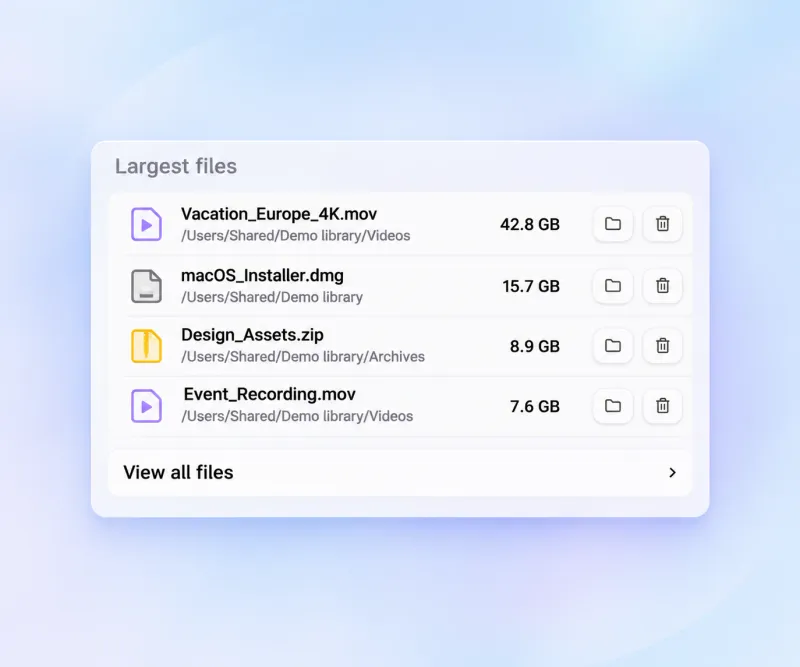
Review your results against the guide to what’s safe to delete. A large downloaded archive can be easy to replace. The only copy of a client project should stay put until it’s backed up. If you check the same folders regularly, CleanMac by CleanMacSpace lists the large files it finds there and lets you review the selection before moving any files to Trash.

 CleanMac