Scan where you allow
You choose the folders. macOS permissions control access, and skipped locations stay visible.
One-time license · No subscription
When your 256GB or 512GB Mac keeps filling up, open CleanMac from the notch or menu bar. Find large files, review your selection and move it to Trash.
Featured on


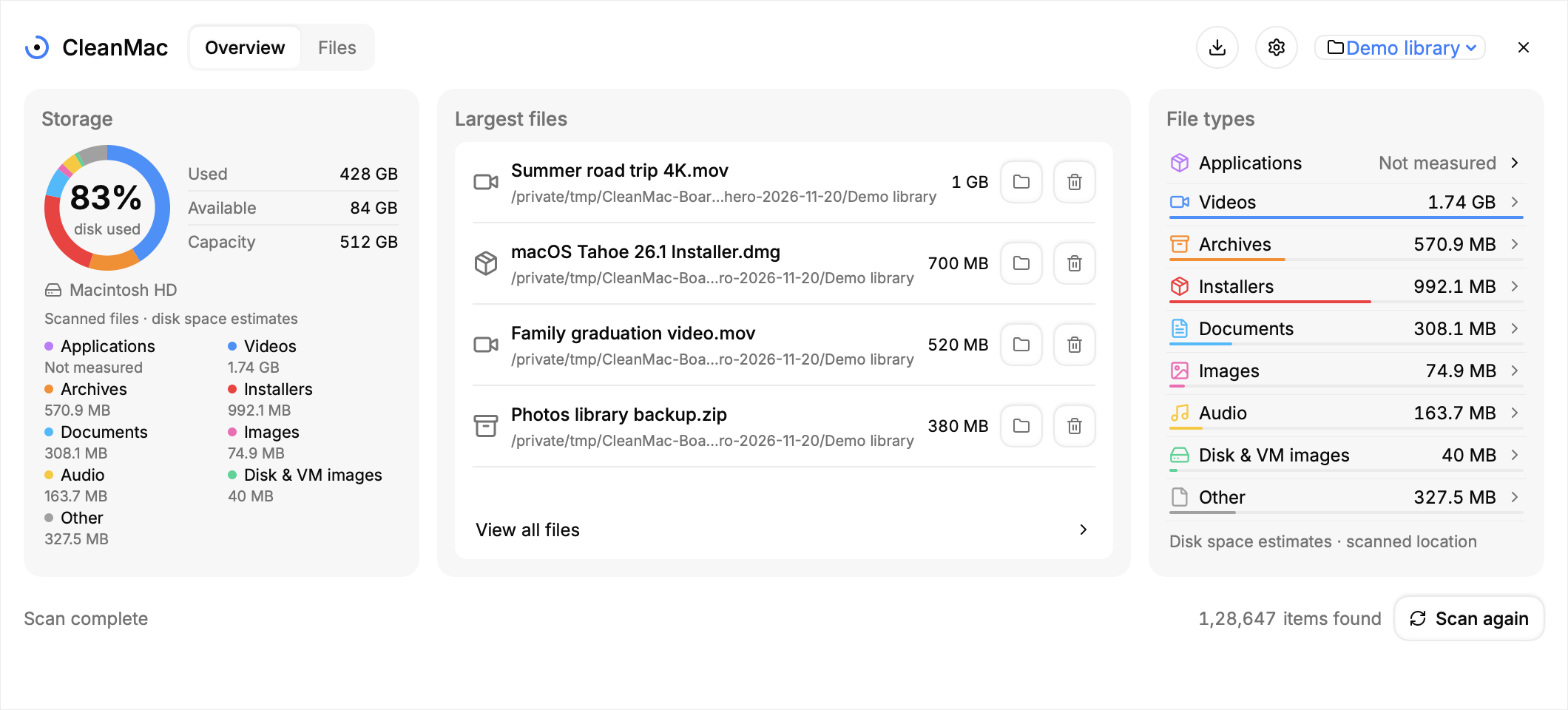
CleanMac by CleanMacSpace shows you what’s taking up room in the folders it scans. Start with the largest files, then decide what to keep, move or remove.
Scanning stays local and under your control. The scanner reads file metadata on your Mac, surfaces the large files first, and moves nothing until you review the exact selection.
See what’s taking up space. Open CleanMac from the notch, sort scanned files by size, and review what you want to move to Trash.
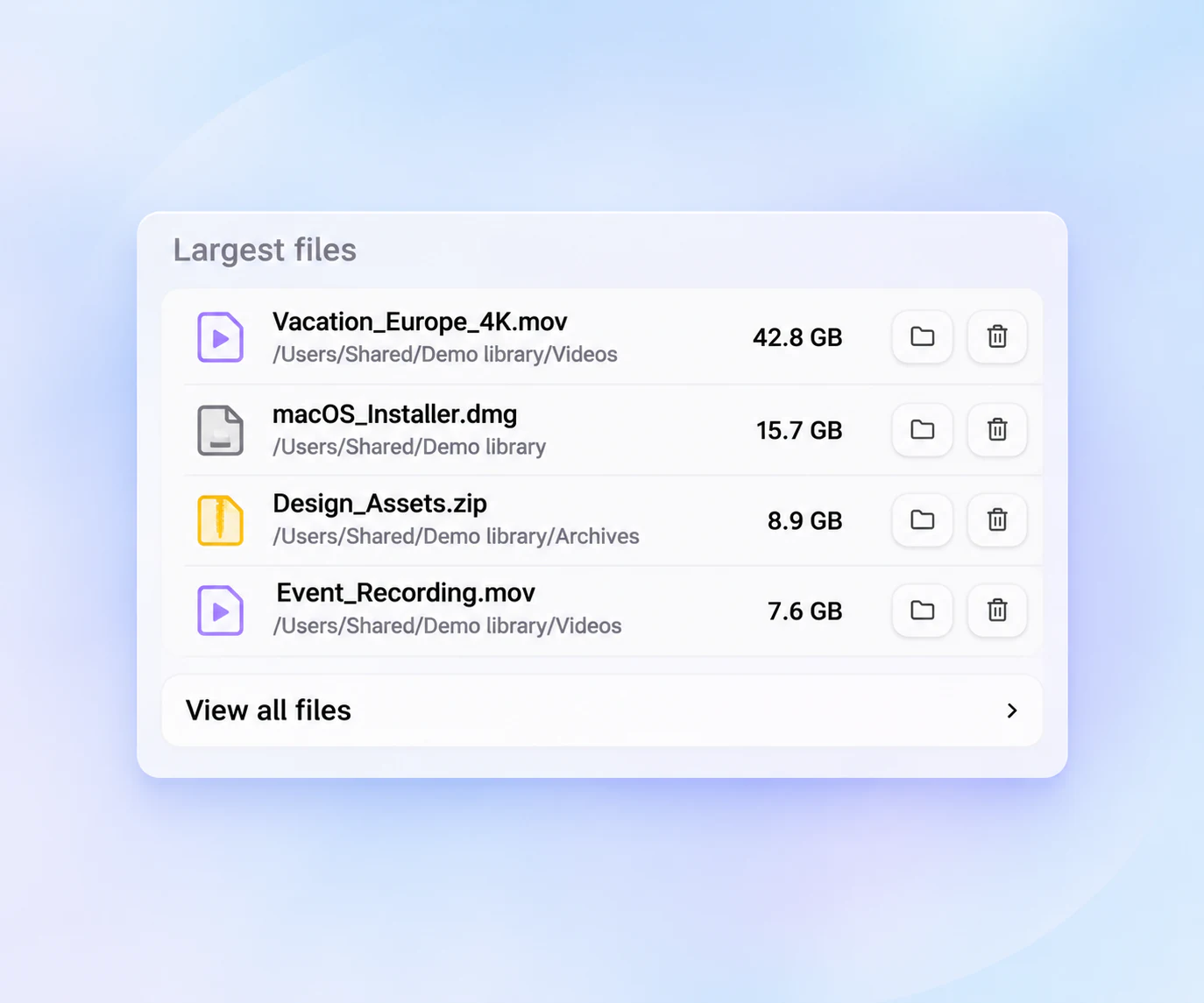
Find large files. Sort files in scanned folders by size to spot old videos, installers and archives.
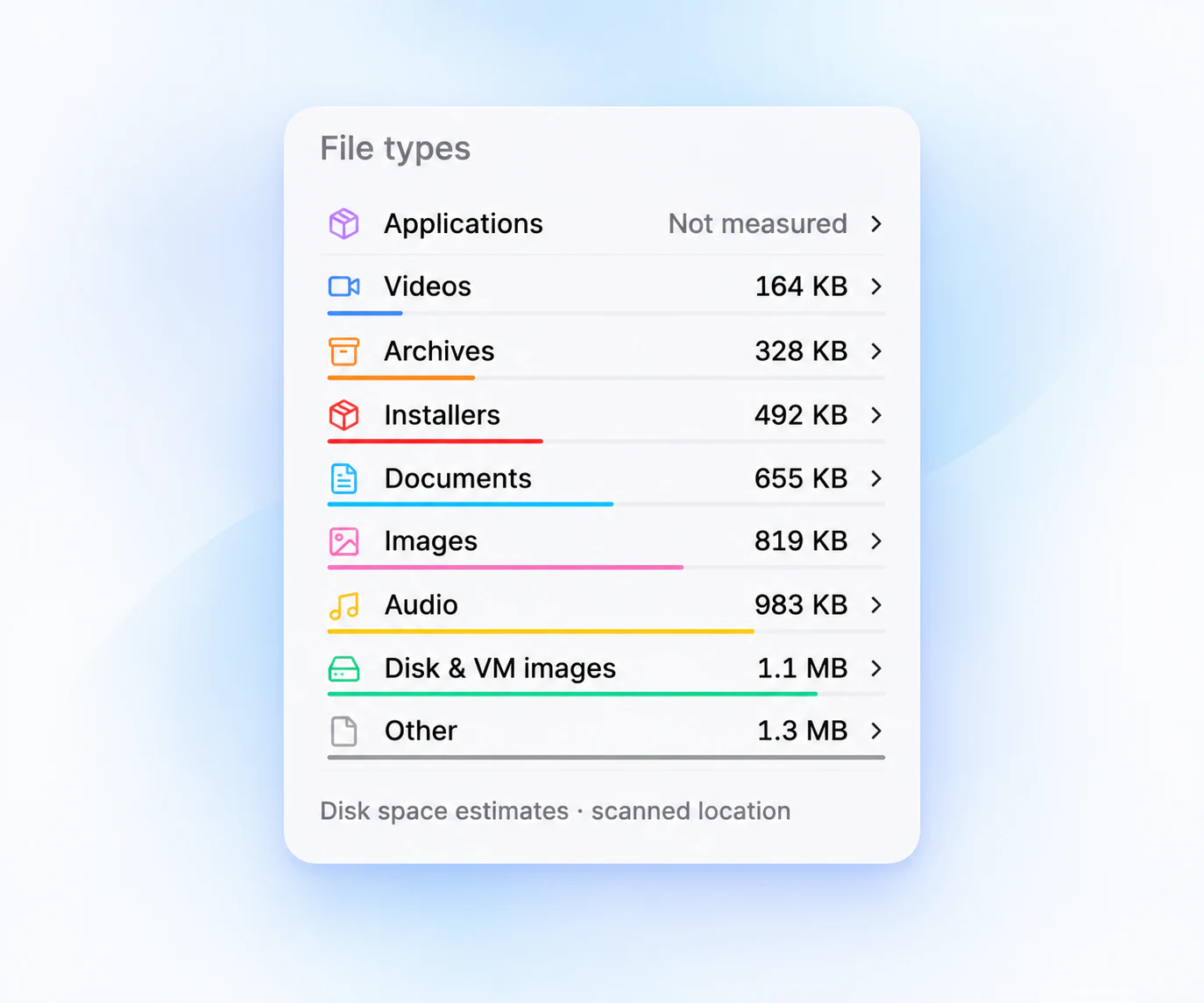
Browse by file type. Videos, archives, documents — see what each kind of file costs you.
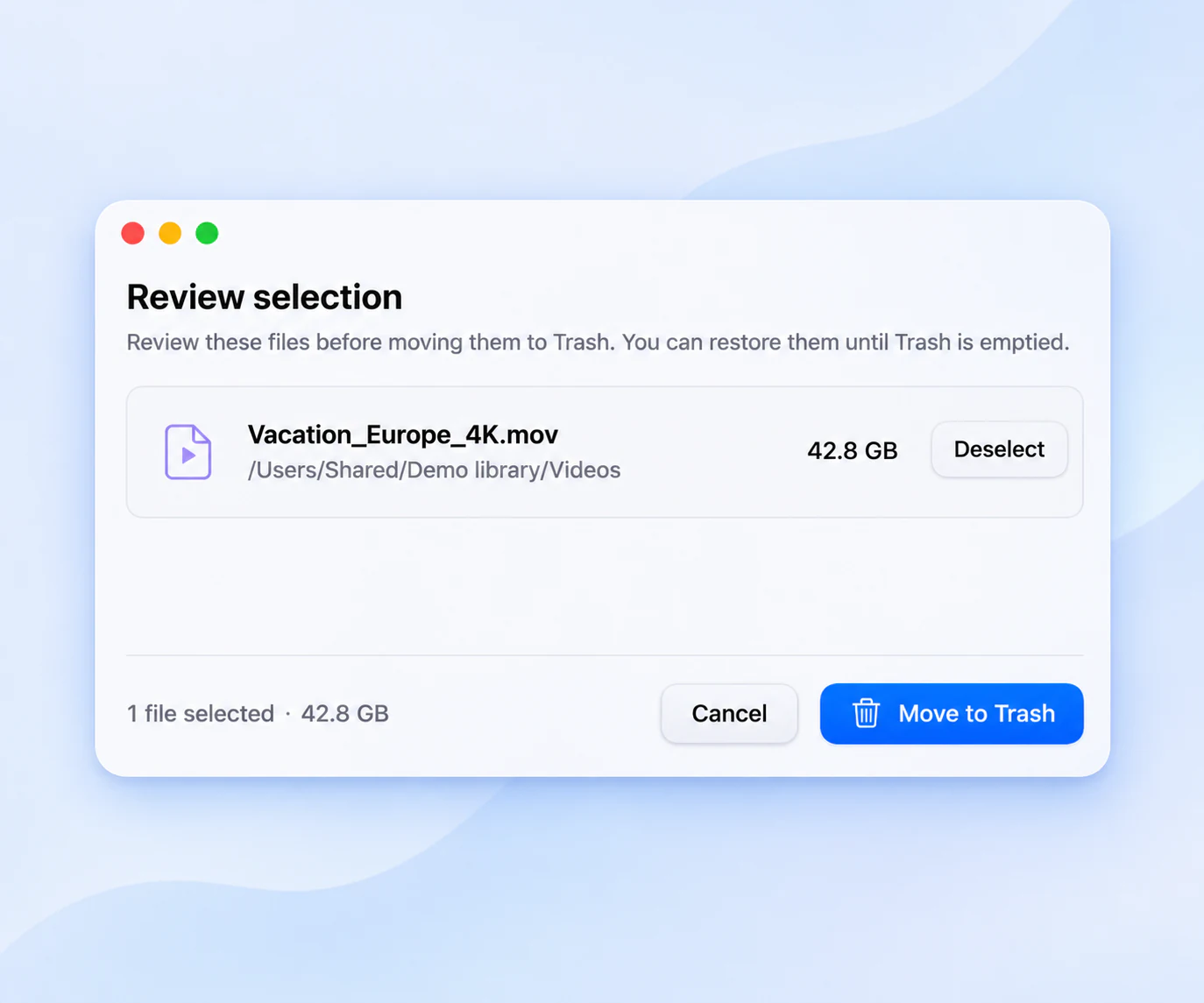
Review before you remove. Check what each file is and how much space it uses before it goes to Trash.
Looking for a Mac cleaner you can buy once? Compare upfront prices and reported scan times for four Mac storage tools.
Bars show one-time US list prices. Scan times vary with file count, hardware, access and scan mode. CleanMac took about 31 s median across three Build 18 test scans on a 512 GB Mac after permission setup. Some locations were skipped.
Choose where to look, then check the files you recognize.
Choose a folder
Start with Downloads or choose another folder to scan.
Find large files
See what’s using your storage, biggest first.
Clear what you don’t need
Review the exact selection before moving it to Trash.
Scan where you allow
You choose the folders. macOS permissions control access, and skipped locations stay visible.
Review before acting
Every selection is shown back to you before anything moves.
You pull the trigger
No automatic deletion, no emptying Trash. Files move only when you say so.
Scanning reads file metadata on your Mac. Quick Look opens the file and can download a cloud copy after a warning.
Your license key arrives by email after purchase and activates CleanMac on first launch. Initial activation needs internet; cleanup works offline for 30 days after verification. Future paid major upgrades are optional; taxes and the final total appear at checkout. License details · Refund terms
Try these simple Mac storage tips before buying anything.
Find what repeatedly fills your Mac and set up a cleanup routine that fits your storage and workload.

Identify what can contribute to System Data and recover space using supported controls in macOS Tahoe and earlier versions.
Make room on a 256GB or 512GB Mac by keeping active work local, verifying archives and reviewing files before deletion.
CleanMac helps you free up Mac storage. It scans the folders you choose, shows large files and what’s using space, and lets you review items before you remove them.
No. You choose the files, review them, then explicitly move them to Trash. CleanMac does not empty Trash for you.
Yes. CleanMac requires a one-time US$4.99 personal license to open and use. Your key arrives by email after purchase and activates on up to two Macs. The download itself is free.
You choose where to look. macOS permissions control access to protected locations. Some locations may be skipped, and the app tells you when a scan could not cover everything.
The scanner reads file metadata locally, without opening file contents. Opening Quick Look is a separate action and may download a cloud file after a warning. Activation and update checks use the internet.
The engineering build targets macOS 14 or later, on Apple silicon and Intel. Build support alone does not certify every device or cloud provider.
No. US$4.99 is a one-time personal license for use on up to two Macs. Version 1 updates are included. A future paid major upgrade is optional.
Yes, for initial activation and license verification. A verified activation allows cleanup offline for 30 days. Reconnect to verify again after that. Scanning and Finder reveal stay available.
Dodo Payments handles checkout and license email delivery. Download CleanMac, move it into Applications, then open Settings → License & updates and enter your license key. You can return to the download and help pages at any time.
All sales are final, because the app is delivered instantly as downloadable software. If you believe a charge was unauthorized or a statutory consumer right applies, contact cleanmacspace@proton.me. Dodo Payments’ buyer terms and applicable law still govern such cases.